Manage Users
Users who have been invited and have accepted invitation appear here.
You will be able to modify roles to these users
Assign Role
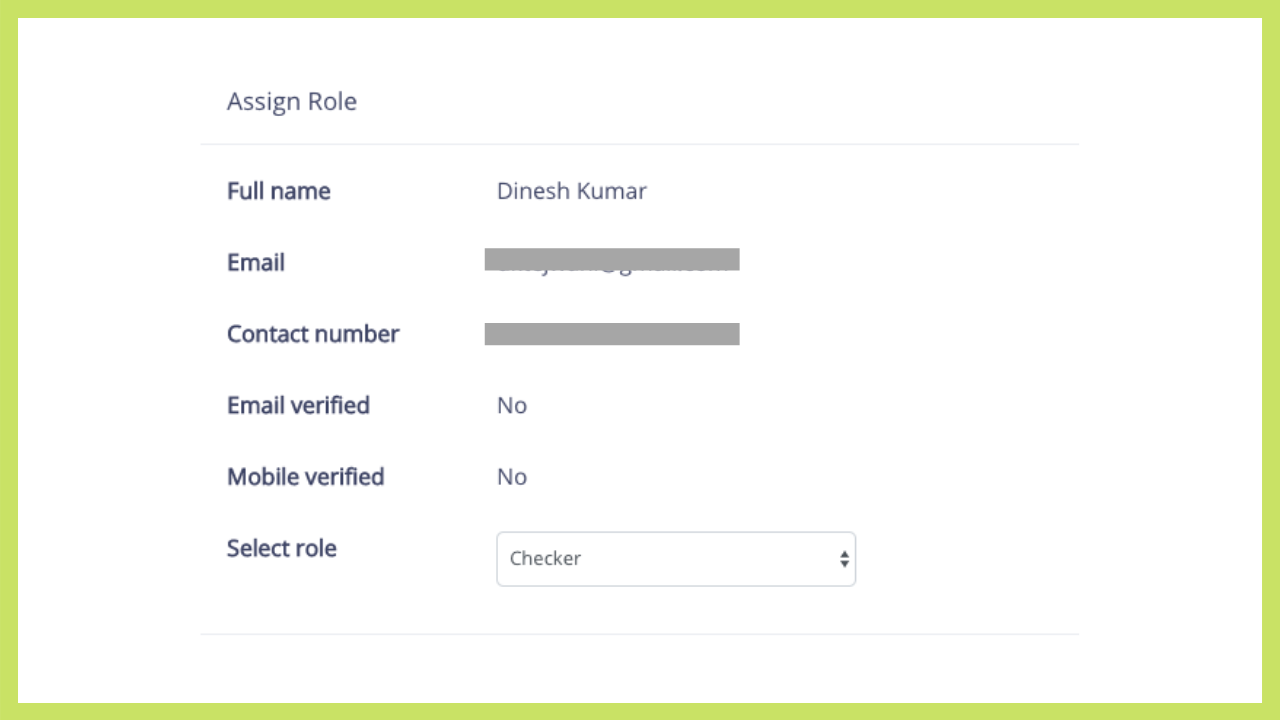
- A user can be assigned role as maker, checker or administrator. However while inviting a user if "Viewer/Auditor" is selected then the only options available are viewer, auditor .
Modifying Role
- Once a role has been assigned to a user, it can be modified subject to few conditions
- Promoting a user is always possible. So you can modify a maker to become checker/Admin. Same way you can modify a checker to become Admin.
- Demoting a user is possible only if such a role has not been assigned for any compliance. So in case you want to modify a checker to become a maker, it will be possible if such a user has not been assigned any compliance as a checker
Delete User
- Deletion of a user is possible only if no compliance has been assigned to him/her.
Deactivate User
- A user who has been assigned compliances , leaves organisation , use this option to deactivate.
- Once deactivated, the user cannot login to Proactly
- Deactivation is possible only if the user has no compliances left to be completed ( if so, then first transfer them to some other user ) or pending approvals or defective compliances
- Deactivated users will not appear in user selection dropdown in Create One Time Task, Assign to Maker/Checker , Assign to Viewer/ Auditor, Edit Assigned->Add Maker, Add-Edit Checker , No Maker Assign and Transfer.